Practical Python Installation Step-by-step Tutorial
Python serves as a versatile programming language widely used in various fields, from web development to data analysis. This tutorial outlines the steps necessary for installing Python on your system, helping users get started with coding in no time.
What is Python?
Python is a powerful, high-level programming language known for its readability and ease of use. It has a wide range of applications, including data science, machine learning, web development, automation, and more. Here are some key features of Python:
- Easy to Learn: Python’s syntax is clear and concise, making it accessible for beginners.
- Versatile: Supports multiple programming paradigms, including procedural, object-oriented, and functional programming.
- Rich Libraries: Comes with a vast standard library and a thriving ecosystem of third-party packages.
- Cross-Platform: Works seamlessly on Windows, macOS, and Linux.
Installing Python
Follow these steps to install Python on your computer:
- Visit the Python download page and click the yellow download button. (If you need a different version, click on the link for your operating system, such as Windows.)

- Go to your download directory and open the file named
python-x.xx.x-xx.exe.
- Select “Customize installation”, and check “Add Python.exe to PATH”.

- Keep the default options or modify them based on your preferences, then click “Next”.

- Decide whether to install for “Just Me” or “All Users”, choose the installation directory, and then click “Install”.
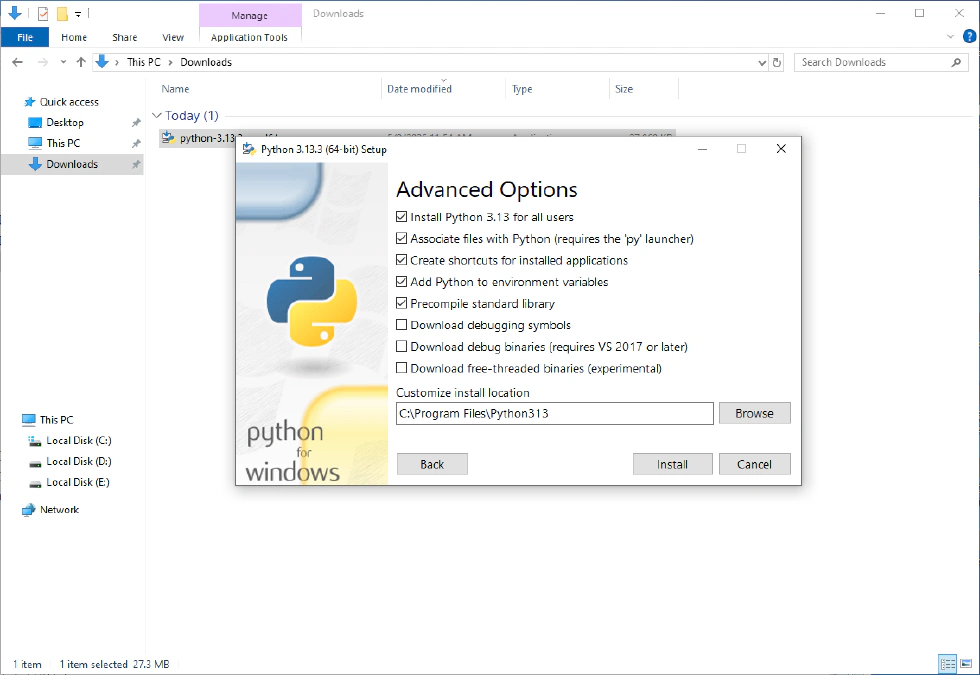

- Wait for the installation to complete, then click “Close”.

Verifying Python Installation
To ensure Python was installed correctly, follow these steps:
- In any folder, hold SHIFT and right-click, then select “Open PowerShell window here”.

- Type
python --versionand press Enter to check the Python version. - Type
pip --versionand press Enter to verify that pip (Python’s package manager) is working.
If both commands display version numbers, congratulations! Python is installed and ready to use.
Manually Configuring Python (If Needed)
If you cannot run Python commands in the console, you may need to manually add Python to your system’s PATH:
- Click the Search button next to the Start menu, type “system environment”, and select “Edit the system environment variables”.
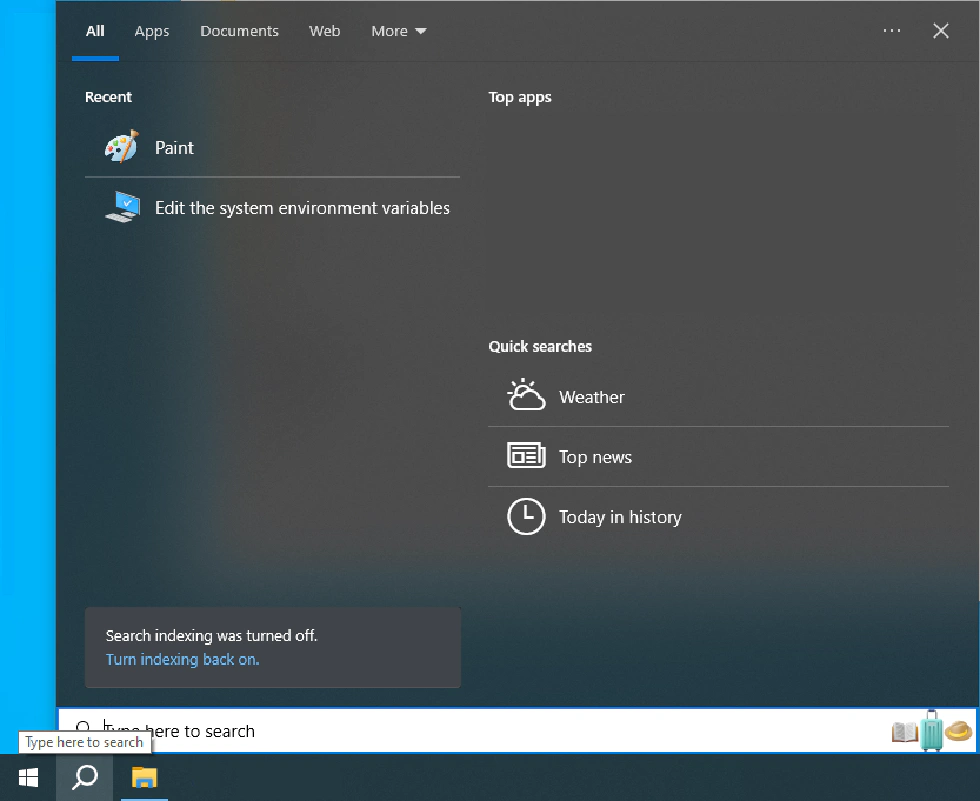

- In the System Properties window, click “Environment Variables…”.

- Under System variables, find Path and double-click it. (If it doesn’t exist, click “New…” to create one.)

- On the right side, click “New” and add the following entries (replace
'your Python path'with your actual Python installation directory):
'your Python path''your Python path'\Scripts
- Click “OK” on all dialogs to save your changes.
Conclusion
Python is a beginner-friendly yet powerful programming language suitable for a wide range of applications. By following this guide, you can easily install and configure Python on your machine, setting yourself up for success in coding, data analysis, automation, and much more. Start exploring Python today and unlock new possibilities in your digital journey!