Make 3D Conversion Simple: How to Use ModelFormatConvert
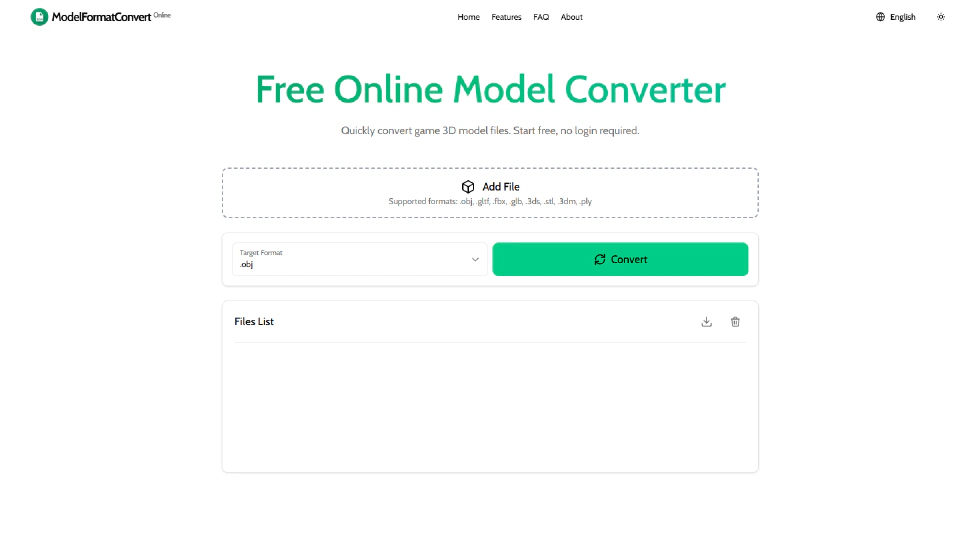
 ModelFormatConvert is a professional, free online 3D model converter designed for developers, designers, and businesses to effortlessly convert between various 3D model formats. Built with cutting-edge technology, our service offers instant, high-precision conversions with no registration, watermarks, or hidden logos. ModelFormatConvert supports complex models with millions of vertices, batch processing for multiple files, and smart optimization of model structure, material mapping, and texture processing to ensure top quality. Compatible with popular formats such as OBJ, GLTF, GLB, FBX, 3DS, STL, 3DM, and PLY.
Features
- Instant & Free: No registration required, no watermarks, no logos, no backlinks.
- High Precision: Conversion Supports complex 3D models with up to millions of vertices.
- Batch Processing: Supports converting multiple files simultaneously.
- Smart Optimization: Automatically optimizes model structure, material mapping, and texture processing to ensure quality.
- Multiple Formats: OBJ, GLTF, GLB, FBX, 3DS, STL, 3DM, and PLY support.
- International: Available in 20 Languages. Like English, Turkish, Ukrainian, Hindi and more.
How to Use
Upload Your File
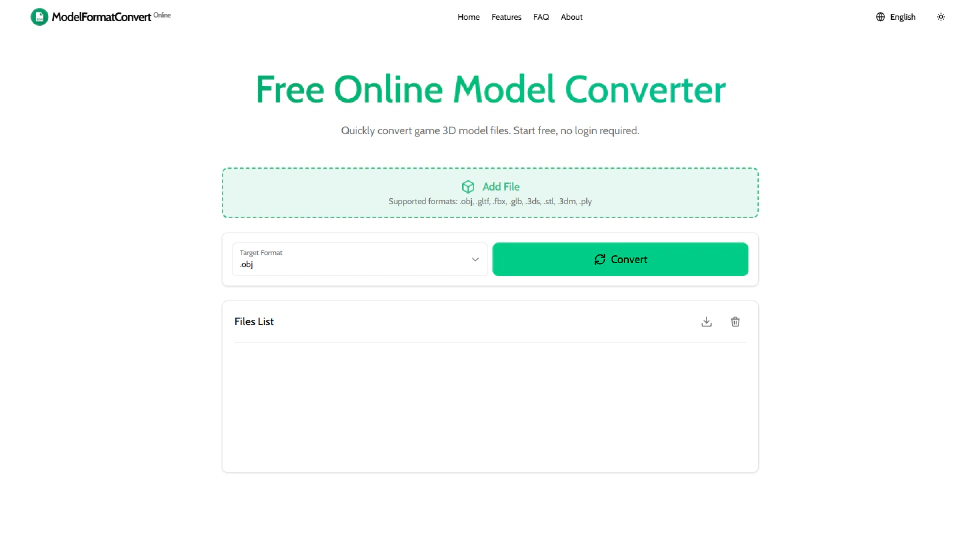
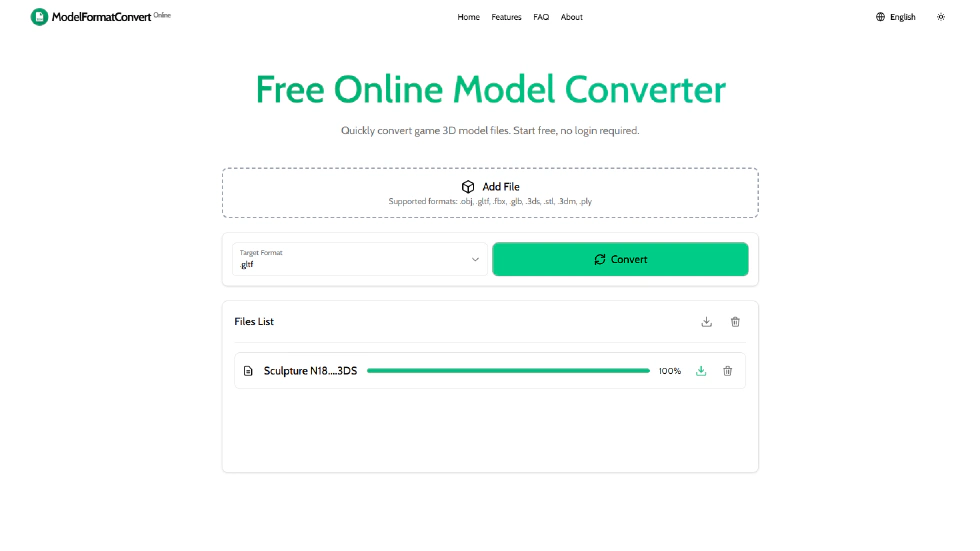
Begin by locating and clicking the “Add Files” button on the converter interface. This will allow you to browse your computer for the 3D model file you wish to convert. Select the file and confirm the upload.
Select the Target Format
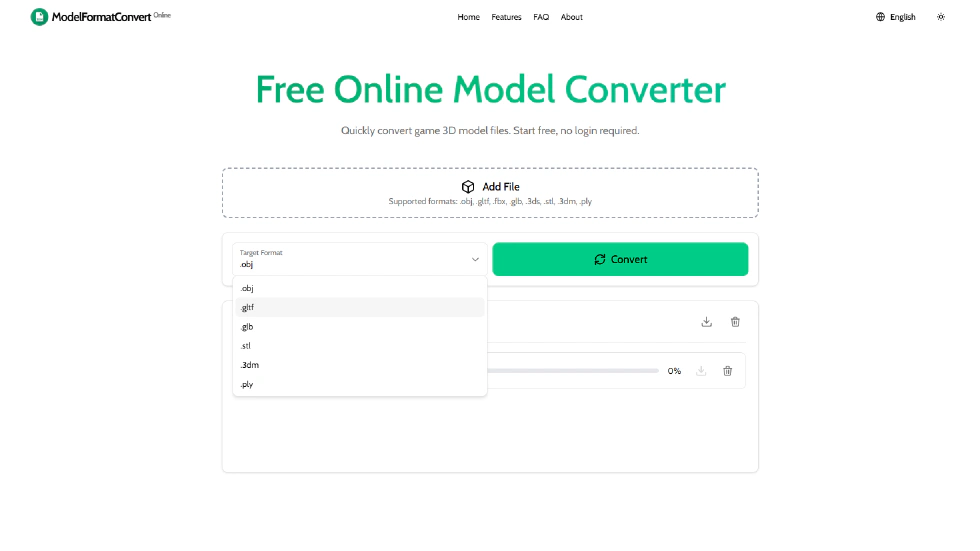
Once your file is uploaded, look for the “Target Format” dropdown menu. Here, you will need to choose the format you want to convert your model to. The available formats include:
- .obj
- .gltf
- .glb
- .stl
- .3dm
- .ply
Make sure to select the appropriate format that suits your needs.
Convert the File
After selecting the target format, click the “Convert” button to initiate the conversion process. Depending on the size and complexity of your model, this may take a few moments.

Download Your Converted File
Once the conversion is complete, you will see a progress bar indicating the status. To download your converted file(s), click on the download icon located to the right of the progress bar. Alternatively, you can click on the “Download All” icon at the top of the panel to download all files in your list at once.
Important Notes on Using the 3D Model Converter
Conversion Considerations
When converting to the .stl format, please be aware that this may lead to potential loss of model colors, materials, texture mapping, or model precision. It is advisable to review the converted model to ensure it meets your requirements.
Supported Formats
-
The converter currently supports the following input formats:
- .obj
- .gltf
- .glb
- .fbx
- .3ds
- .stl
- .3dm
- .ply
-
For the target formats, you can convert your models to:
- .obj
- .gltf
- .glb
- .stl
- .3dm
- .ply
Conclusion
Using ModelFormatConvert can greatly enhance your workflow, allowing you to work with different formats effortlessly. Follow these simple steps to convert your models and keep these important notes in mind to ensure a smooth conversion process. Happy modeling!